Honeyfund: the free honeymoon registry, the free cash registry, the free anything registry

PayPal Payments Setup Guide
We at Honeyfund believe no one should have to pay fees for their honeymoon registry. However many couples want to give their guests the convenience of paying online. So, we make it possible for you to accept credit card payments via your own PayPal account. Read on for all the details.
STEP 1: Open a PayPal Premier or Business account
PayPal accounts come in three types: Personal, Premier and Business. You might already have a Personal PayPal account. However to receive credit card payments from your gift givers, you'll need a premier or business account. We recommend you setup a new PayPal Premier or Business account for your Honeyfund. (You can reuse it later on with Plumfund!)
FOLLOW THESE EXAMPLES:
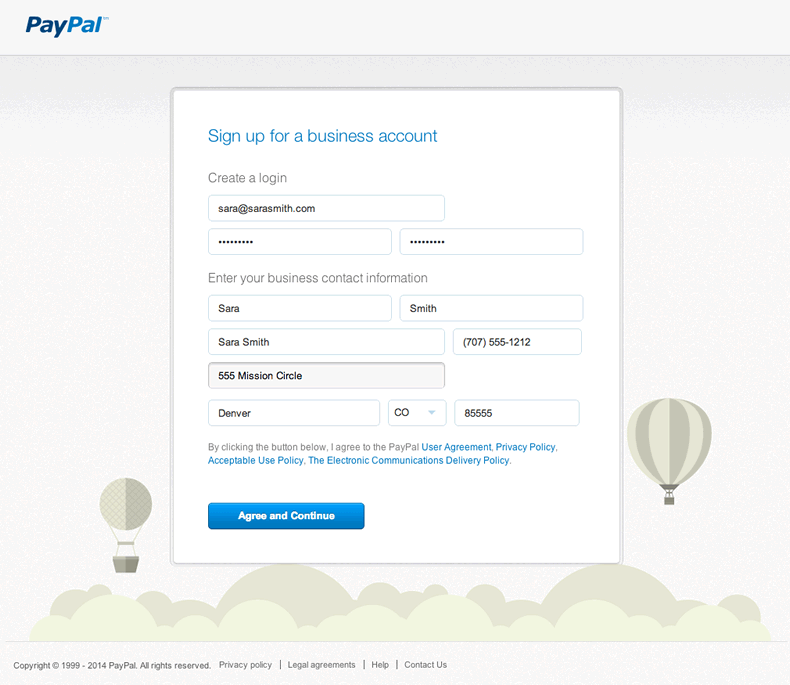
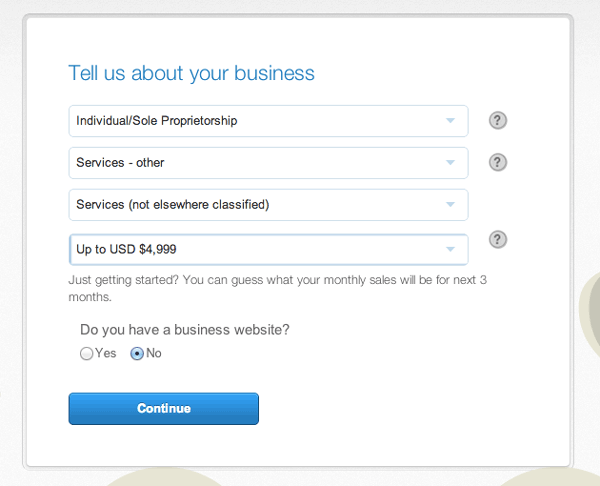
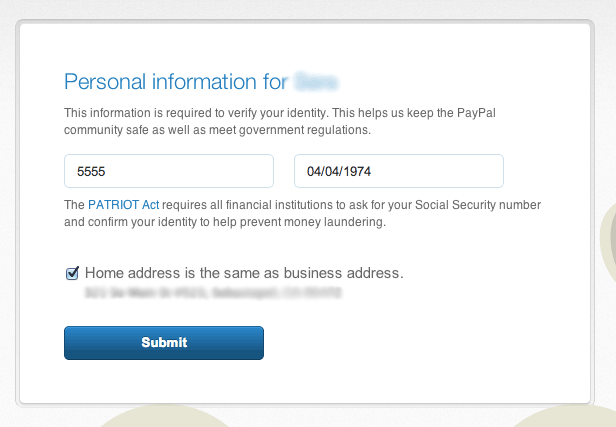
Prefer to upgrade your personal PayPal account? Follow theses steps:
a. Login to your existing PayPal account, and click Upgrade under the welcome message.
b. On the next page, click the Upgrade Now button.
c. Now choose a Premier or Business account.
d. Proceed through the steps above.
STEP 2: Confirm your E-mail Address
In your e-mail inbox open the e-mail with the subject Confirm your email from PayPal:
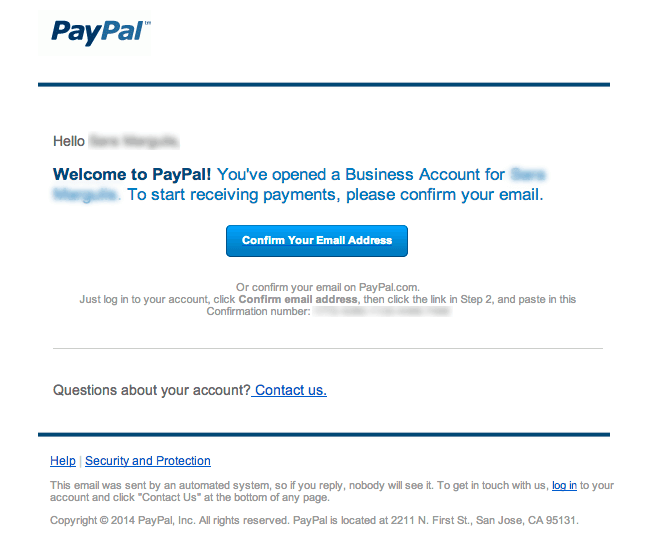
STEP 3:Verify your PayPal account
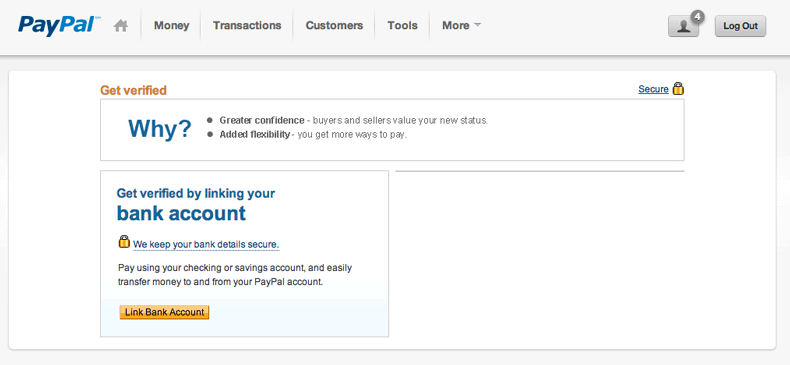
In order to get "verified," lift receiving limits, and withdraw your gift payments from your PayPal account, you will need to link your bank account. Follow this link to Get Verified.
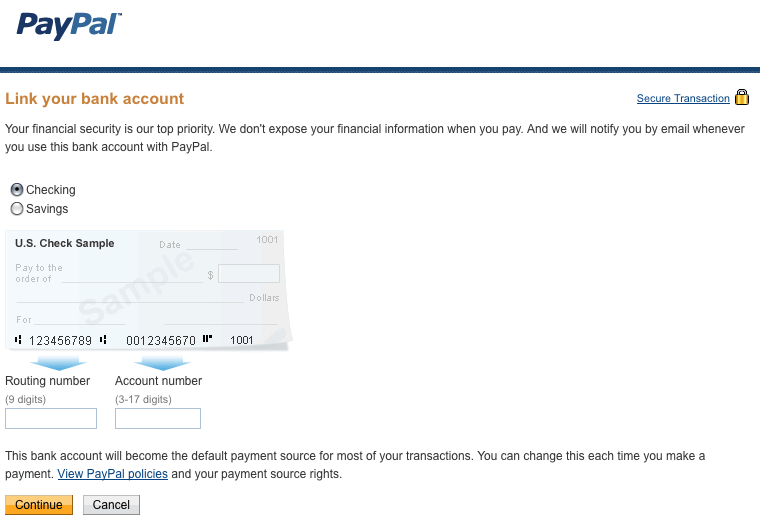
Enter your bank account information and click Continue:
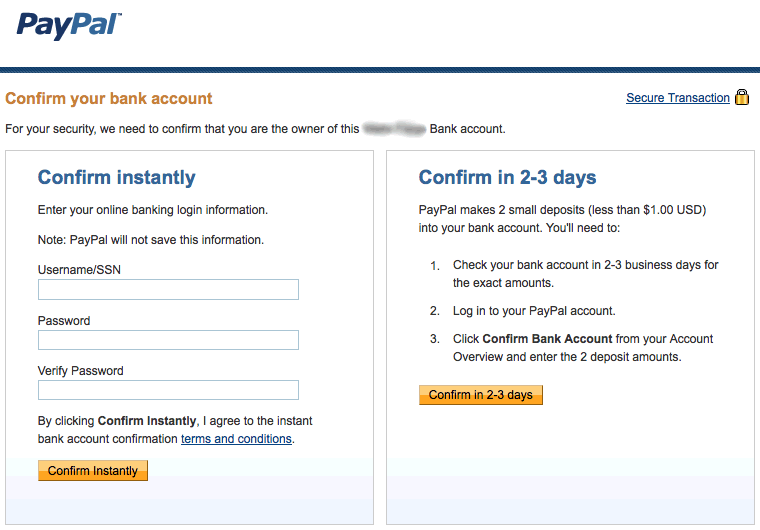
Then follow the instructions to confirm your bank account information:
STEP 4: Further ConfigureYour PayPal Account
A: Setup Auto-Return and Payment Data Transfer
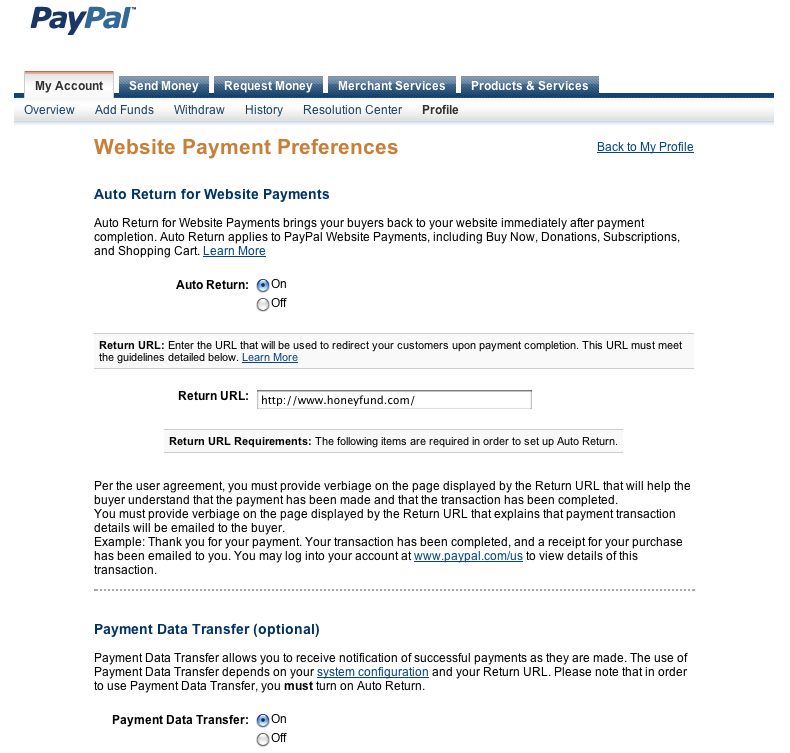
These features allow us to automatically update your Honeyfund account when a PayPal payment is made. Follow this link to your PayPal Website payment preferences, then configure these settings:
Auto Return: On
Return URL: If blank, simply enter http://www.honeyfund.com/
Note: Our system will automatically return each gift giver to their unique Honeyfund confirmation page.
Payment Data Transfer: On
Note: PayPal may send you an e-mail regarding an Identity Token and configuring "IPN." You can disregard this information.
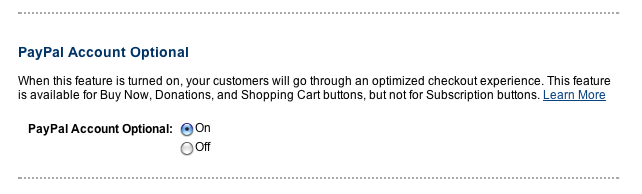
B: Allow gift givers to pay you without a PayPal account
Still on Website payment preferences, scroll down to configure this setting:
PayPal Account Optional: On
Note: This setting will only appear if you have completed the previous steps 1-3.
STEP 5: Add your PayPal e-mail address to your Honeyfund account*
Finally, update your Honeyfund payment settings with the e-mail address of your PayPal account, so we know where you send your payments! To do this, go to:
Edit your Honeyfund >Account Settings > Payment Settings
Check the box "Credit Card", then select the PayPal option and enter your PayPal account's e-mail address. Then click Save. We will send a verification e-mail to your PayPal e-mail address.
Don't Forget to Verify your PayPal e-mail address in Honeyfund
You will receive a verification e-mail from Honeyfund to your PayPal e-mail address. Click the link in that e-mail to enable PayPal payments for your Honeyfund. You will need your name as it appears on your PayPal account to verify.
*Security note: Giving us your PayPal e-mail address allows us to direct gifts givers to make payments into your PayPal account. It does not allow us to access your PayPal account.
A note regarding PayPal Security and "Phishing"
Fake or phishing e-mails attempt to gain access to sensitive data and will often ask you to reveal your password or other personal or financial information. These days, fake emails are getting more sophisticated, so it can be tough to know whether an -email is real or not. Here are some ways to identify if a PayPal e-mail is fake or not:
- E-mails from PayPal will always address you by your first and last names or by your business name. We never say things like "Dear user" or "Hello PayPal member."
- PayPal e-mails don't link directly to pages that ask you to enter sensitive information like your bank account, credit card, and national identification or Social Security numbers
If you think you received a fake PayPal e-mail or have come across a fake PayPal website, please report it to us immediately. Here's how:
- Do not change the subject line and do not forward the message as an attachment.
- Forward the e-mail to spoof@paypal.com.
- Delete the e-mail from your inbox.
Every e-mail counts. By forwarding suspicious-looking e-mails can help keep yourself and others safe from identity theft!